Your Account Settings page lets you manage all aspects of your Hub Digital profile.
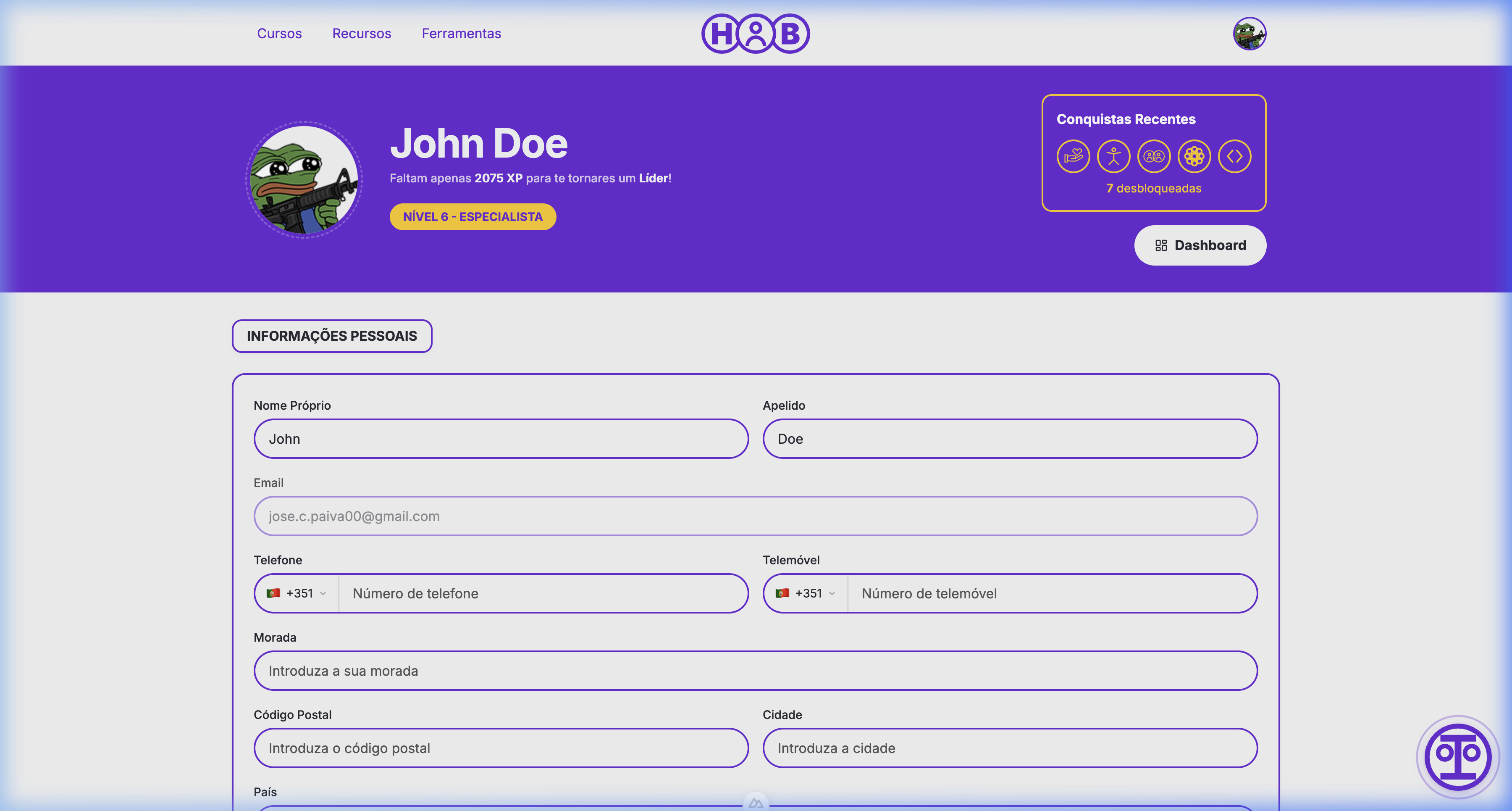
Personal Information
Update your personal details:
- First Name and Last Name
- Email (read-only, linked to your account)
- Phone and Mobile numbers (with country code)
- Address, Postal Code, City, and Country
Click Save after making changes.
Profile Picture
Uploading a New Avatar
- Click on your current avatar image
- Select a new image from your device
- Use the cropping tool to adjust the image
- Click Save to upload
Removing Your Avatar
Click the remove button to revert to a generated default avatar.
Professional Information
For educators, you can specify:
- Institution — Your affiliated institution
- Department — Your department or faculty
- Teaching Cycle — Education level you teach
- Contract Category — Your contract type
Gamification Profile
Customize your gamification presence:
- Nickname — Your display name on leaderboards
- View your current level and total XP
Social Links
Connect your social profiles:
- Website
- GitHub
- Twitter/X
- And more
In-App Notifications
Hub Digital includes an interactive, real-time in-app notification system to keep you informed of activities on the platform.
The Notification Inbox
You can access your notifications from the Notification Bell icon in the header bar.
- Unread Badge: A red circle with a count shows how many unread notifications you have.
- Inbox & Archive: The notification dropdown features two tabs: Inbox (new, active notifications) and Archived (saved or dismissed notifications).
Notification Actions
Inside the dropdown, you can perform the following actions:
- Navigate: Click on any notification to go directly to its associated page (e.g., the detail page of a new course or a submission review).
- Mark as Read/Unread: Hover over a notification and click the checkmark button to move it between Inbox and Archived.
- Mark All as Read: Click the "Mark all as read" button at the top of the dropdown to batch-process all active notifications.
- Delete Notification: Click the trash icon to permanently remove a notification.
Real-Time Updates (Polling)
When you are logged in, the platform queries the backend every 30 seconds (30s polling) for new notifications. This ensures you receive timely updates without manually reloading the page.
Notification Preferences
You can customize what events trigger in-app and email notifications under your Account Settings:
- Course Coordinator Updates — Notifications about courses you coordinate or teach.
- Unit Coordinator Updates — Notifications about modules/units you manage.
- New Courses — Alerts when new courses are published to the catalog.
- Content Approval — Updates on the review status of resources or tools you've suggested.
- Achievements & Badges — Notifications when you earn new XP levels or unlock gamification badges.
Security
Changing Your Password
- Enter your current password
- Enter your new password
- Confirm the new password
- Click Change Password
Password requirements are enforced for security.
Inviting Colleagues
Share Hub Digital with your colleagues:
- Click on your profile icon in the top-right corner of the header to open the User Menu.
- Select Invite Friends.
- In the modal:
- Enter your colleague's email address and click Send Invite to send a direct invitation email.
- Copy the direct link from the Share Invite Link section to copy it to your clipboard and send it manually.
They'll receive an email or link to activate their account and set up their profile.
Danger Zone
Deleting Your Account
⚠️ This action is irreversible.
If you wish to delete your account and all associated data:
- Scroll to the bottom of the settings page
- Click Delete Account
- Confirm the action in the dialog
All your data, courses, and progress will be permanently removed.